


FACTS Family App
3.9417.00 Reviews
App Specs
- Version
- 60.7.0
- Updated On
- License
- Free
- Downloads
- 100,000+
- Developer
- FACTS Management
- Categories
- Education
- Platform
- Android
Screenshots

 Analysis by AppCompare
When I first opened FACTS Family App, I approached it as a practical school-communication tool rather than another app I would check for entertainment. That is the right mindset. It is an education app from FACTS Management, designed to bring school-related information into one family-facing place. The store summary describes its purpose simply: staying connected to your school. In daily use, that means its value depends less on flashy design and more on whether it helps a parent or guardian find the right information without chasing messages, paper notices, or several separate systems.
The app is free to download, carries an Everyone age rating, and has passed the 100K+ installs mark. Its average rating is 3.9 from around 900 ratings, with more than 400 written reviews. Those figures suggest a useful but not universally effortless experience, which matches my impression: the app can become a convenient part of a school routine, but the quality of that routine depends heavily on how the school has configured and uses the FACTS ecosystem.
What to expect before you begin
The first thing to understand is that this is not a general-purpose school organizer that works independently of your child’s school. It is a connection point. If your school uses FACTS services and has invited your family into the system, the app can help you access the information associated with that relationship. If your school does not use the relevant FACTS setup, installing the app alone will not create a useful dashboard.
That distinction matters because it prevents a common disappointment. Someone looking for a universal calendar, homework planner, or messaging app may expect to create everything manually after installation. That is not the best way to think about this product. I would treat it as a school-provided doorway: the school supplies the account relationship and the information, while the app gives you a more convenient place to reach it.
In practical terms, the app is most suitable for parents and guardians who want a mobile route to school information, especially when their school already relies on FACTS. It may also help older students who are included in the family account, but the experience is clearly centered on family-school communication rather than independent student productivity. If your main need is writing essays, tracking personal study time, or managing a private family calendar, another education app will probably serve you better.
I also recommend setting expectations around consistency. A school communication app can only show what has been entered, shared, or made available by the institution. If an announcement is late, a schedule is incomplete, or a detail is handled through another channel, the app cannot repair that gap. The useful question is not “does this replace every school message?” but “does this give me a reliable place to check the information my school puts there?”
The current version is 60.7.0, and the app supports Android 7.0 and later. That makes it accessible on many older Android phones, which is helpful for families who do not upgrade devices frequently. Still, compatibility is only the starting point. A supported phone does not guarantee that every school workflow will feel equally smooth, so I would judge it after linking the correct school account and completing a real task.
Worth Reading Before You Choose

EA SPORTS FC Mobile 26 Is a Bigger Football Game, but It Takes Time

Flipboard Shows What News Apps Must Do Beyond the Feed

Switching to Android Auto Means Rethinking Your Driving Routine

Google Calendar Makes a Crowded Week Easier to Manage

Ludo King Makes the Most of the Minutes Between Plans

Baby Panda World Brings Quick Play to Modern Phones, but Its Game Library Feels Busy
How the first setup usually feels
I would begin setup when I have the school’s instructions nearby, rather than installing the app casually and trying to guess my way through it. The important detail is the account or school connection supplied by the institution. Entering a personal email that is different from the one the school has on file can create the impression that the app is broken when the real issue is account matching.
After installation, take a moment to check that the app is the official FACTS Family App from FACTS Management. Then follow the school’s sign-in or invitation process carefully. If the school has given you a particular email address, family code, or enrollment instruction, use that exact information. This is one of the less obvious but most important setup tips: do not assume that the email you normally use for every school message is automatically the account recognized by the app.
Once signed in, I would look for the child or children connected to the family profile and confirm that the names and school relationship are correct. This is a small step, but it prevents a larger problem later. If you are managing information for more than one child, knowing which profile you are viewing becomes especially important before acting on anything related to school communication.
Another useful habit is to explore the main areas before you need them urgently. Open the sections that appear relevant to your family and note where school updates, account-related information, or other available resources are located. The exact options can vary with the school’s setup, so I would not expect every family to see an identical layout. The goal is simply to build a mental map while there is no deadline attached.
If setup does not work, I would troubleshoot in a specific order. First, check the spelling of the account information and confirm that you are using the school’s current instructions. Next, close and reopen the app and try again. If the account still cannot be connected, contact the school office or the school’s designated FACTS support route rather than creating multiple new accounts. Repeated sign-ups can make it harder to tell which login the school actually recognizes.
Finding the first meaningful success
For a first-time user, the best initial goal is not to explore every screen. It is to complete one useful school-related action. I suggest opening the app, selecting the correct family or student context, and locating a current piece of information that you would genuinely need during the week. That might be a school update, a relevant schedule item, or another resource your school has made available. The exact item depends on the institution, but the principle is the same: prove that the connection is working by finding something actionable.
A realistic example would be a busy weekday morning. You remember that the school sent an update, but you cannot find it in a crowded email inbox. Instead of searching through unrelated messages, you open the family app, confirm the right child profile, and check the school-provided information there. If the needed detail is available, that is the first meaningful success. It saves time not because the app performs a complicated task, but because it gives school information a dedicated place.
I would then repeat the process later in the day with a different type of information. This helps reveal whether the app is useful only for occasional announcements or whether it can become part of your regular routine. A good workflow might be checking it at a calm time in the evening, noting anything that affects the next day, and then closing it. I prefer this deliberate habit to opening it constantly and turning school communication into another stream of interruptions.
One of the strongest practical tips is to use the app as a confirmation point, not as your only memory system. If something affects transport, an appointment, or a deadline, copy the relevant detail into the calendar or reminder system you already trust. The family app remains the source you check, while your personal calendar helps you act on the information. This two-step approach is more reliable than assuming every school update will automatically become a personal reminder.
Another useful trade-off is speed versus verification. It may be tempting to read the first visible update and move on, but family accounts can contain information for more than one child or more than one school context. I would spend a few seconds checking the profile and date before making plans. That small pause is particularly worthwhile in households where siblings have different schedules.
The first successful action should also tell you whether the app fits your communication style. If you prefer one organized school channel, it may reduce searching. If you already receive complete and timely information through a school portal, email, and calendar, the app may feel like another place to monitor. In that case, its benefit depends on whether your school places something there that is easier to access than through the alternatives.
Where new users can become confused
The most likely confusion is assuming that installation equals enrollment. It does not. The app needs the correct school relationship behind it, so a blank, incomplete, or unexpected experience may be an account-linking issue rather than a device issue. I would avoid judging the app until the school has confirmed that the family account is active and connected to the right student.
A second source of friction is variation between schools. Two families can install the same application and see different information because their schools may use different parts of the FACTS environment or organize communication differently. That means a tutorial from another parent may not match your screen exactly. Use it as general guidance, but follow your own school’s instructions when they differ.
It is also easy to confuse the family-facing app with a complete replacement for every school system. Some schools still use email, printed notices, phone calls, or separate services for particular matters. I would keep those channels available until you have observed how your school actually communicates. The app is most useful when it complements the school’s process; it becomes frustrating when a family assumes it is the single source for information the school has never placed there.
Notifications can create another practical issue. A notification is helpful only if it leads you to information you can understand and act on. If you receive an alert but cannot immediately tell which child or school item it concerns, open the app and verify the context before reacting. Conversely, if you are missing expected updates, check the account connection and the school’s communication practice before blaming the phone. The distinction between “the app did not receive something” and “the school did not publish it there” is important.
I would also be cautious about treating every visible item as equally urgent. School systems often contain a mixture of announcements, routine information, and account-related details. Developing a quick sorting habit helps: identify what changes tomorrow’s plan, what needs a response, and what is simply useful background. This is a small workflow improvement, but it keeps the app from becoming a cluttered stream.
There is a financial detail worth understanding as well. The app is free, but in-app purchases are listed at $4.99 per item. That does not mean every family will need to buy something, and I would not assume a purchase is required just to use the basic app. If a paid item appears, read what it relates to and consider whether it is connected to a school-specific service you actually need. Families should avoid tapping through automatically, especially when one device is shared among adults or children.
How it compares with familiar alternatives
Compared with ordinary email, the family app can be easier to revisit because school-related information is separated from work, shopping, and personal messages. Email remains stronger for searching across years of correspondence, forwarding details, and communicating with people outside the school’s system. I would use the app for checking the school’s organized information and email for conversations or records that need to be retained elsewhere.
Compared with a school website, the app is more convenient when I am checking from a phone during a busy day. A website can still be better for browsing broad public information, reading long documents, or finding pages that are not tied to a family account. The app’s advantage is not that it replaces the website entirely; it is that it can make family-specific access less cumbersome.
Compared with a general calendar, FACTS Family App has the advantage of being connected to school-provided information rather than relying on me to enter every item manually. A personal calendar is still better for combining school events with work shifts, medical appointments, transport plans, and household responsibilities. My preferred setup is to check the school app, then transfer only the commitments that affect my family’s schedule.
Compared with a broad parent-messaging platform, this app may feel more focused when the school already uses FACTS. A general messaging service can be more flexible for group conversations, informal reminders, or communities that include several organizations. On the other hand, that flexibility can also produce noise. If your school has chosen FACTS as its main family connection, staying within that environment may be simpler than maintaining another independent community app.
That comparison leads to a clear judgment. I would recommend this app to families whose school actively supports it and expects parents to use it. I would be more reserved for someone downloading it without a school invitation, someone seeking a universal homework manager, or someone who wants a private family planner unrelated to institutional communication. In those situations, the app’s central strength is not aligned with the actual need.
Making it useful after the first week
After the first successful check, I would create a simple routine rather than trying to use every available area. Choose one or two moments when checking school information makes sense, such as after work or before preparing for the next day. This reduces the chance of missing something while avoiding the feeling that the app demands constant attention.
For families with multiple children, make profile verification part of the routine. Before acting on a message or schedule item, glance at the student context. This is a non-obvious safeguard that takes almost no time and can prevent planning around the wrong child. If another adult shares responsibility, agree on who checks the app and how important information is passed along. The app can centralize access, but it does not automatically centralize family decisions.
I also recommend keeping a short record of which information your school actually publishes there. During the first few weeks, notice whether the app is where you find announcements, school resources, or other family-specific details. That observation will tell you how much attention the app deserves. If the school consistently uses it, make it part of your routine. If communication remains spread across several channels, keep the app as one source rather than treating it as the master record.
Parents who are concerned about older devices may appreciate the Android 7.0 minimum requirement, since the app does not demand a recent operating system. Even so, I would keep the phone’s software and available storage in reasonable condition, because general device performance can affect any mobile app. If the app feels slow or behaves unexpectedly, compare that behavior with other apps on the same phone before assuming the school account is at fault.
Families should also decide who needs access. Because the app is centered on school-family connection, it may be useful for more than one responsible adult, but sharing credentials casually is not a good habit. Use the school’s intended account process and keep personal access details private. If another guardian needs access, ask the school how that relationship should be added instead of passing around one login without guidance.
My recommendation for a first-time family
My overall view is positive but conditional. FACTS Family App is not impressive because it tries to do everything; it is useful when it gives a FACTS-connected school family a dependable mobile place to check relevant information. The experience becomes much clearer once I stop expecting a universal planner and focus on the school relationship it is built to support.
For a first-time user, the path is straightforward: install the free app, use the school-recognized account details, confirm the correct student connection, find one current item that affects your family, and then decide how the app fits beside email and your personal calendar. That sequence gives you a meaningful test without wasting time exploring features that your school may not use.
The limitations are real. Setup can be confusing when account details do not match, the available experience can vary by school, and the app should not automatically be treated as a replacement for every communication channel. The presence of optional paid items also deserves attention before making a purchase. These are not reasons to dismiss it, but they are reasons to use it thoughtfully.
Given its Everyone rating, broad Android compatibility, free entry point, and established user base, I think it is worth trying when your school directs you to it. I would skip it as a standalone download if you are looking for study tools or a general family organizer. For the right school community, though, the most valuable feature is the reduction of searching: one familiar place to begin when you need to know what the school has shared.
In the end, I would recommend keeping it only if it proves useful in your actual school routine. Check it for a week, compare what you find there with the channels your school already uses, and build a small habit around the information that matters. If that process saves you from digging through messages or wondering where a school update went, FACTS Family App has earned its place on your phone.
Pros
- Secure family messaging keeps conversations private and organized.
- Shared calendars help coordinate school
- work
- and household activities.
- Simple interface makes it accessible for children and older relatives.
- Custom reminders can reduce missed appointments and family tasks.
- Family-focused tools keep important information in one convenient place.
Cons
- Some features may require a paid subscription or in-app purchases.
- All family members may need compatible devices for full functionality.
- Notification settings can become overwhelming for larger households.
- Limited usefulness if relatives do not regularly use the app.
- Account setup and permissions may take time for less technical users.
FAQs for FACTS Family App
What is the FACTS Family App used for?
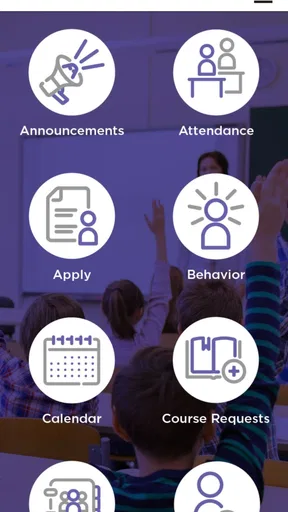
The FACTS Family App is designed to help parents and guardians stay connected with their child’s school community from a mobile device. Depending on the school’s setup, it may provide access to announcements, calendars, messages, attendance information, grades, assignments, forms, event details, and other family-related resources. Available features can vary, so your school must use compatible FACTS services for the app to be useful.
How do I sign in to the FACTS Family App?
To use the app, families generally sign in with the account credentials provided or recognized by their school’s FACTS system. You may need to select your school or organization before entering your login details. If you cannot remember your password, use the available recovery option rather than creating a second account. For problems involving account activation, student linking, or school access, contact your school administrator.
Can I manage information for more than one child in the app?
In many school configurations, the FACTS Family App allows a parent or guardian to view information for multiple children connected to the same family account. The exact layout and available records depend on how the school has configured its FACTS services. After signing in, look for a student selector or family profile area. If one of your children is missing, the school may need to update your account.
Does the FACTS Family App send notifications and school messages?
The app can be used to receive important school communications, such as announcements, reminders, calendar updates, attendance notices, or messages from staff, when those features are enabled by the school. You should allow notifications during setup if you want timely alerts. However, notification delivery can also depend on your phone settings, internet connection, and the school’s communication preferences.
Is the FACTS Family App free, and what should I check before downloading it?
The FACTS Family App is typically available to download without a separate app purchase, but access to its services depends on your school’s FACTS subscription and your family account. Before downloading, confirm that your school supports the app and that your device meets the current Android or iOS requirements. Also review the developer name, requested permissions, and privacy information in the official app store.


